
Saved Searches & Alerts
Saved Searches let you bookmark your current filter combination for quick access later. Alerts notify you by email when new opportunities match a Saved Search.
Creating a Saved Search
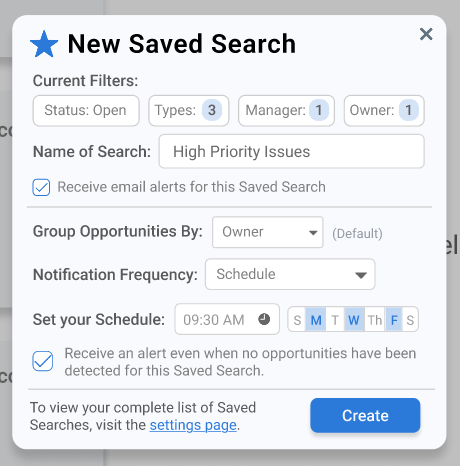
Apply the filters you want to save (status, recruiter, type, etc.).
Click the star icon.
In the popup, give your search a name.
Optionally, enable email alerts for this Saved Search.
Save.
Your Saved Searches appear in a dropdown list and can be selected at any time to re-apply those filters instantly.
Configuring Alerts
When you enable alerts on a Saved Search, you can customize how and when notifications are delivered:
Grouping
Alerts can be grouped by Owner (the recruiter associated with the opportunity) or by Type (the opportunity category).
Frequency
Choose from:
Real-time — Get notified as soon as a matching opportunity is detected.
Scheduled — Set specific days of the week and a time for delivery.
Editing a Saved Search
To modify an existing Saved Search or its alert settings, click the pencil icon next to the search name in the dropdown list.