
Navigating the Dashboard
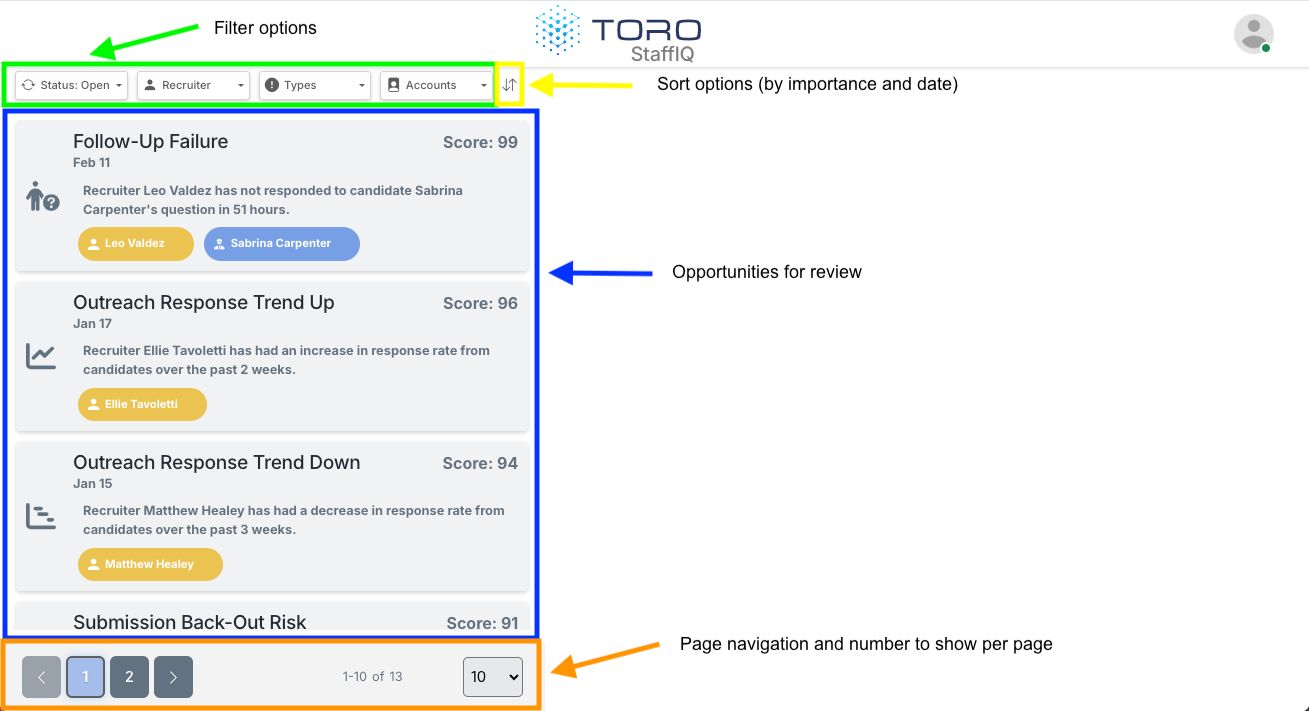
After signing in, you'll land on the main StaffIQ interface. Think of it like an email inbox — each item is a detected event representing a coaching opportunity for your team. The list view on the left shows opportunities, and clicking one opens its details on the right.
Filtering Opportunities
Several filters are available at the top of the list to narrow down what you see.
Status Filter
Defaults to Open (active opportunities). The dropdown provides additional options:
Read / Unread — Checkboxes let you filter to opportunities that have or haven't been viewed by your team.
Completed — Shows opportunities resolved by a user or automatically by recruiter/candidate activity. Each entry notes when and how it was closed.
Invalid — Shows opportunities that didn't meet the confidence threshold or other requirements. Useful for understanding why certain situations weren't flagged.
Recruiter Filter
Filter the list by the recruiter associated with each opportunity. This is especially useful for:
Team leads — Narrow the view to just your recruiting team to reduce noise from other groups.
Recruiter coaching — During 1:1s or reviews, filter to a specific recruiter's Open and Completed opportunities for coaching insights.
The recruiter filter is sticky — your selections persist between sessions, so team leads don't need to re-apply them each visit.
Types Filter
Filter by one or more opportunity types (e.g., Placement Back-Out Risk, Follow-Up Failure). This list adapts to which opportunity types have been detected in your company and will grow as Toro releases additional types.
Sorting
Use the sort icon to reorder your results:
Score — Surfaces the highest-impact opportunities using a combination of candidate data, recruiter data, and AI analysis. Prioritizes urgency and potential value.
Newest to Oldest — Most recently created opportunities first. Note: the date reflects when StaffIQ surfaced the opportunity, not necessarily when the underlying activity occurred.
Oldest to Newest — Oldest opportunities first.
Page Navigation
Use the page buttons at the bottom to move through results. The size dropdown lets you adjust how many opportunities appear per page.